How to Open DDS File? (Windows & Mac)
Have you ever double-clicked a texture file from a game mod or 3D project only to see an error message? A dds file is a specialized DirectDraw Surface format created by Microsoft for high-performance graphics. It stores compressed textures, mipmaps, normal maps, and alpha channels that standard apps like Windows Photos or Mac Preview simply can’t handle. If you’re frustrated and searching for how to open dds file, you’re in the right place. This guide walks you through free, reliable solutions for both Windows and MacBook so you can view, edit, or convert your files in minutes—no paid software required.
Why Standard Programs Fail and What You Need Instead
DDS files use advanced compression (DXT/BCn formats) optimized for games and 3D engines. Default apps lack the codecs, so you need a dedicated dds file opener, viewer, or editor.
How to Open DDS File on Windows – Free and Fast Methods
Method 1: GIMP
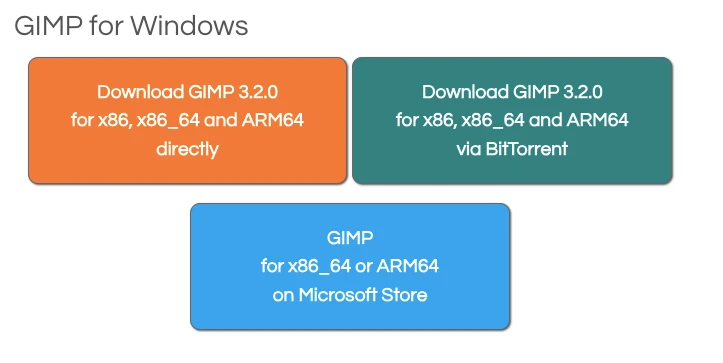
– Free Editor That Works Like a Pro GIMP is completely free and handles most DDS formats (including BC7 in recent versions).
- Download GIMP from gimp.org and install it on your PC.
- Open GIMP, go to File > Open, locate your DDS file, and click Open.
- Right-click the file in File Explorer and choose “Open with > GIMP” for even faster access. Edit colors, transparency, or layers right away—great for game modders.
Method 2: Quick Online Option Without Installing Anything
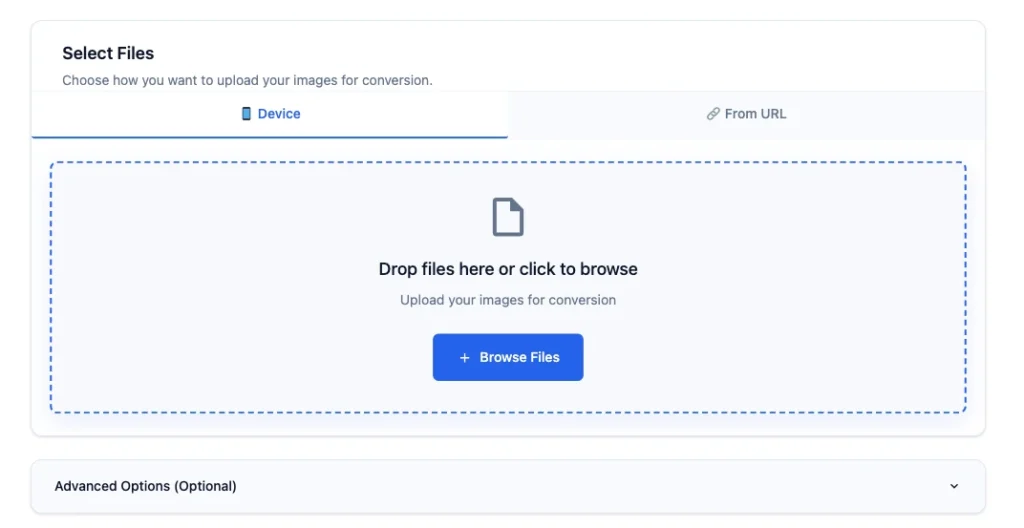
- Drag and drop your file or click Browse Files.
- Wait a few seconds for upload.
- After upload convert dds file into png or jpg whichever you want then download it. This is the easiest way to open a dds file.
How to Open DDS File on MacBook – Simple Solutions for Apple Users
MacBooks don’t have built-in support either, but the same free tools work beautifully.
Method 1: GIMP on macOS
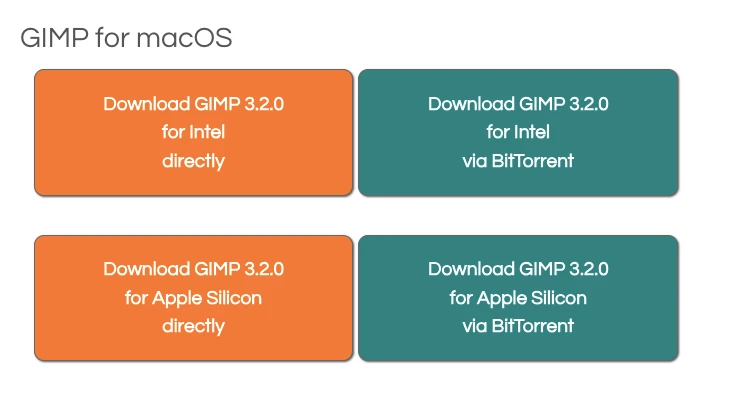
GIMP runs perfectly on MacBook (Intel or Apple Silicon).
- Download the Mac version from gimp.org.
- Install and open the app.
- Choose File > Open and select your DDS file. You now have a full-featured dds image viewer and editor in one. Resize, crop, or export layers without issues.
Bonus Tip for Mac Users If you already own Photoshop, install the free NVIDIA Texture Tools plugin from NVIDIA’s site, restart Photoshop, and open DDS files directly. But for most people, GIMP is the zero-cost winner.
Extra Value: Convert Your DDS File for Everyday Use
Sometimes you just need the image in a normal format.
- In GIMP: Open the file > File > Export As > choose PNG or JPG > Export.
- Or use a free online converter (convertdo.com). This solves the problem permanently—your converted file opens in any app.
Troubleshooting Quick Fixes
- File won’t open? It may use rare compression—try GIMP first or re-download the original.
- Blurry preview? Enable mipmaps in the viewer if available.
- Large files? Use the desktop tools instead of online. These steps solve 95% of issues immediately.
Why These Methods Are the Best Choice
Whether you’re a gamer fixing mods, a 3D artist checking assets, or just curious, these free options give you full control without spending money or learning complicated software. XnView MP also serves as a solid dds picture viewer if you want a simple thumbnail browser (available for both Windows and Mac).
Now you know exactly how to open dds file on any computer. Pick one method, follow the steps, and your texture file will open instantly.
FAQs
Yes! GIMP and Photoshop let you edit layers, colors, and transparency before saving back as DDS or converting to PNG.
Absolutely—use the online Jumpshare dds file viewer or Photopea in any browser.
Yes, they handle common BCn and DXT formats used in most games.
No—GIMP and the online viewers work out of the box. Only Photoshop needs the NVIDIA plugin.

Saad Khalid is the founder of Convert Do. His mission is to provide Clean, Fast and Straightforward tool for Developers, Designers and everyday Users. So you can convert your file within a second without any delay. He regularly writes about digital tools to help users meet their needs