How to Create a TIFF File (A Detailed Guide)
I get it. You just scanned your grandmother’s or family members old photo, edited it carefully, and then watched the quality fall apart the moment you saved it as a JPEG. Or your printer rejected the file because it looked “mushy.” These problems happen every single day — phones force you into compressed formats, free apps strip metadata, and suddenly your crisp 300 DPI scan turns into something that looks like it was taken with a potato. That’s exactly why so many of us end up needing a proper TIFF file.
TIFF (Tagged Image File Format) is the gold standard when you refuse to lose a single pixel. It keeps every detail, supports layers, and prints exactly the way you expect. The best part? Creating one isn’t nearly as complicated as most tutorials make it sound. I’ve helped photographers, small business owners, and even students fix this exact issue dozens of times, and today I’m walking you through the easiest, most reliable ways that actually solve the headaches you’re facing right now.
Why TIFF Files Matter & The Real Problems They Fix
- JPEG compression destroys fine details (especially in skin tones, text, and gradients)
- PDF scans often lock you out of future editing
- Phone apps auto-downsize images without warning
- Print shops reject files that look “off” because of missing color profiles
- Large batches of family photos become a nightmare when quality keeps dropping
TIFF solves all of that in one go.
Get Ready Before You Start (5-Minute Prep Checklist)
- Scan or shoot at 300 DPI minimum (400 DPI for text-heavy documents)
- Clear at least 500 MB of space — TIFF files are bigger for a reason
- Keep your original RAW/HEIC/JPEG as backup
- Decide if you need layers (only Photoshop/Affinity users usually do)
Easy Ways for How to Create a TIFF File
Free Software for Windows & Mac (No Limitations)
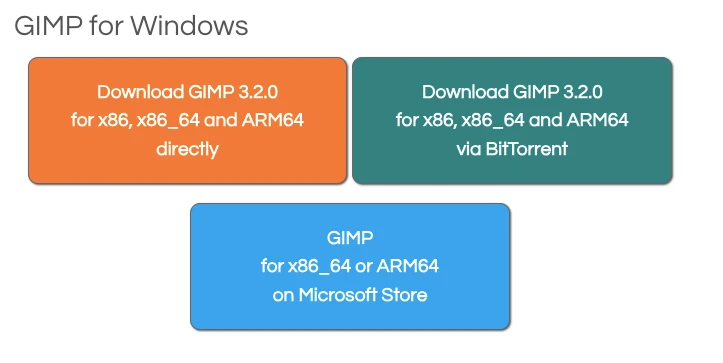
Most people get stuck because the default apps on Windows and MacBook only give very limited export choices. The simplest fix that works perfectly on both is the completely free GIMP editor.
- Download it once from the official site (gimp.org — safe and no ads)
- Open your image and make any edits
- Go to File → Export As → pick TIFF format
- Tick LZW compression (cuts file size by up to 50% with zero quality loss) This method gives you full control and never hides the TIFF option.
Online Method (Phone, Café, or Any Computer)
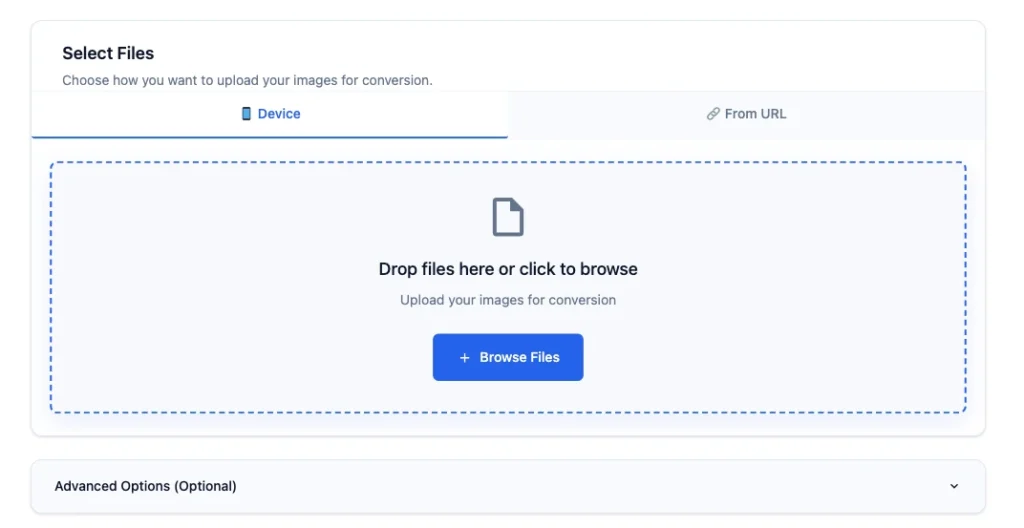
No downloads, no installation. Just upload your file, pick TIFF output, and hit convert. One platform I always recommend to friends who need something quick and trustworthy is ConvertDo.com — you can convert your file to tiff with convertdo in seconds, no signup, no ads, and it keeps every pixel intact.
Fixing the Most Common Headaches People Face in 2026
- Limited options in basic apps? → Switch to free GIMP (steps above)
- File too big for email? → Use LZW or ZIP compression during save
- Colors look wrong on another device? → Add ICC profile before exporting
- Scanner giving blurry results? → Switch to 400 DPI + color mode (not grayscale)
- Batch processing 50+ photos? → Use the online converter convertdo.com instead of opening each one
Once your file is ready, The finished version straight to a folder you actually use. Open it in two different programs just to double-check everything transferred perfectly.
Final Tips to Keep Your Files Safe for Years
- Name files clearly (e.g., “Grandma_Portrait_2026_TIFF.tif”)
- Store on external drive + cloud backup
- Never edit the TIFF directly — always work on a copy
- Re-check the file size after saving (should be noticeably larger than JPEG)
TIFF files aren’t trendy, but they’re reliable — the format that still works when everything else fails. Use these steps once and you’ll never waste another afternoon redoing work because of compression damage. Whether you’re preserving memories or prepping professional prints, you now have the exact method that actually delivers.

Saad Khalid is the founder of Convert Do. His mission is to provide Clean, Fast and Straightforward tool for Developers, Designers and everyday Users. So you can convert your file within a second without any delay. He regularly writes about digital tools to help users meet their needs