How To Convert PNG to DDS (A Detailed Guide)
Understanding PNG and DDS Formats
Before you learn how to convert PNG to DDS, Get to know first exactly what these two formats are and why they exist.
PNG (Portable Network Graphics) is one of the most popular image formats on the internet Because of It’s lossless, which means it keeps every tiny detail and color exactly as you saved it. PNG also supports full transparency, so it’s perfect for logos, icons, web graphics, and any image where quality and clean edges matter. Almost every photo editor and browser supports PNG without any problems.
DDS (DirectDraw Surface) is a completely different beast. Microsoft created it specifically for DirectX and game engines. DDS files are built for speed. They support special compression types (DXT1, DXT3, DXT5), automatic mipmaps, and they load super-fast on GPUs. That’s why almost every modern game and 3D program uses DDS textures.
Why You Should Convert PNG to DDS
So why go through the trouble of converting? Here’s the honest truth:
If you’re making a game in Unity, Unreal Engine, Godot, or even modding an older title like Skyrim or GTA V, PNG files cause real headaches. They’re bigger, slower to load, and the engine has to do extra work to turn them into something it can actually use.
Converting to DDS fixes all of that. Your textures become smaller, load instantly, use less memory, and look sharp at every distance because the mipmaps are already baked in. Mobile games especially benefit because file size and performance are everything. Many professional tools and engines simply refuse to accept anything except DDS.
In short: if you want smooth gameplay, smaller download sizes, and zero compatibility issues, convert PNG to DDS is the smart move.
The Best Free Way to Convert PNG to DDS
You don’t need to buy expensive software or learn complicated tools. The easiest, safest, and completely free solution is ConvertDo – a fast online PNG to DDS converter that works right in your browser.
ConvertDo is 100% free, has no file limits, supports batch conversion, and protects your privacy completely. No sign-up, no ads, no nonsense. Whether you’re on a laptop, desktop, or even your phone, you can turn PNG files into DDS in seconds.
Step-by-Step: Convert PNG to DDS Using Browse Files
Here’s exactly how to do it – so simple even a complete beginner can follow:
- Go to convertdo.com in your browser.
- Click the big “Browse Files” button on the homepage.
- Choose the PNG file (or multiple PNG files) from your computer. You can select one image or an entire folder at once – batch conversion is fully supported.
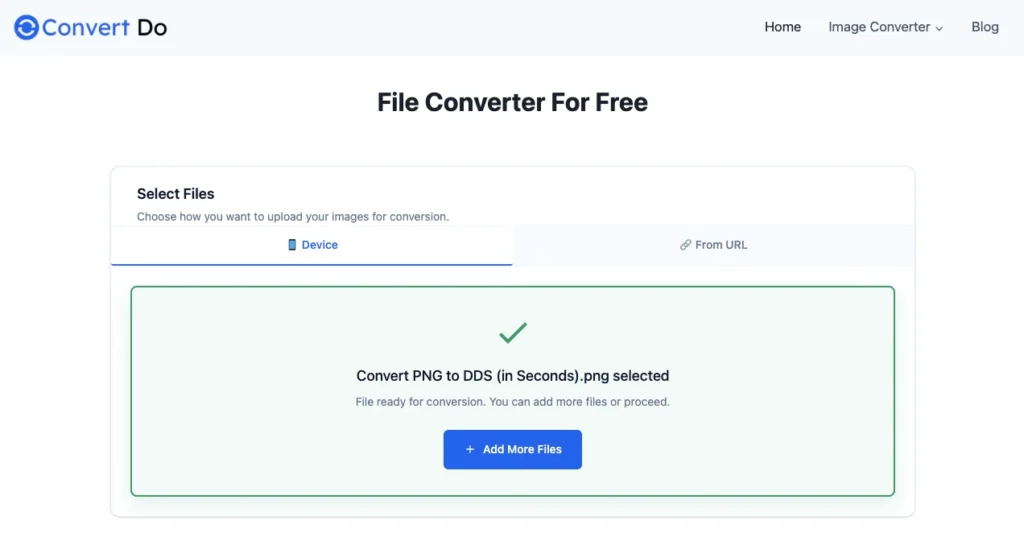
- After the file uploads (it’s lightning fast), look at the format options on the right side.
- Select “DDS” from the dropdown menu.
- Click the “Convert Now” button.
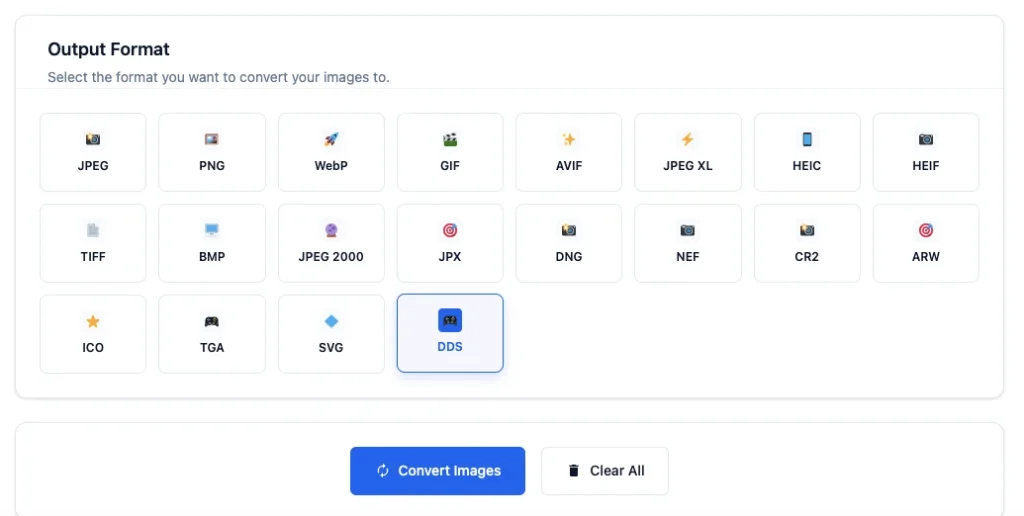
- Wait just a few seconds and your new DDS file(s) will be ready to download.
That’s it. No extra settings to worry about, no waiting around. The whole process usually takes less than 2 to 3 seconds per file.
Convert Using URL
If your PNG file is already online then you don’t even need to download it first. Just copy the url and follow these steps:
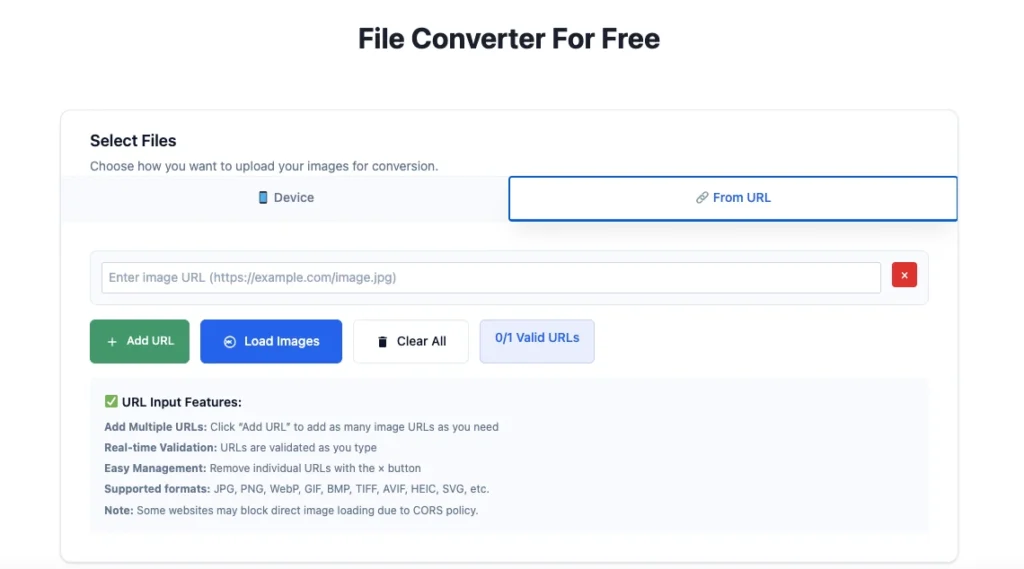
- On the same page, find the “from URL” section.
- Paste the direct link of your PNG file.
- Choose “DDS” in the format options.
- Hit “Convert Now.”
ConvertDo will fetch the image, convert it instantly, and give you the DDS file ready for download. This method is a lifesaver for developers and anyone working with online assets.
Why ConvertDo Is the Best PNG to DDS Converter
Let me tell you why so many people keep coming back to ConvertDo:
- Completely free with zero limits – Convert one file or 500 files. There’s never a paywall or daily cap.
- Batch conversion supported – Upload dozens of PNGs at once and get all your DDS files in one go. Perfect for game texture packs.
- Lightning-fast speed – Most conversions finish in under 5 seconds because the heavy work happens on powerful servers, not your computer.
- 100% privacy protected – Your files are never stored on any server. Even during upload, ConvertDo has zero access to your images. Everything is processed in temporary memory and deleted immediately after conversion. Your textures stay completely private.
- Works on every device – No software to install, no admin rights needed. Just open your browser and go.
In my experience, these benefits actually solve real problems. You stop wasting time on slow desktop tools, you never worry about file limits or privacy leaks, and you can focus on creating instead of converting.
Pro Tips for Perfect Results
To get the best possible DDS files every time:
- Start with the highest-quality PNG you have (16-bit or 32-bit if possible).
- After converting, always test the DDS straight in your game engine – most engines have a quick preview mode.
- Keep your original PNG as a backup (just in case you need to edit it later).
- If you notice any tiny color differences (very rare), simply re-convert – it takes seconds.
These small habits will save you hours of troubleshooting down the road.
Final Thoughts
Converting PNG to DDS used to be a annoying technical chore. Now, with ConvertDo, it’s one of the simplest tasks you’ll do all day. Whether you’re an indie developer, a professional 3D artist, a modder, or just someone who needs DDS for a specific program, this free PNG to DDS converter removes every single obstacle.
Next time your game engine complains about texture formats or your project feels slow to load, remember: just head to convertdo, click “Browse Files,” pick your PNG, select DDS, and hit “Convert Now.” Your perfectly optimized textures will be ready before you finish your coffee.
Fast. Free. Private. Unlimited. That’s the ConvertDo promise – and it actually delivers.

Saad Khalid is the founder of Convert Do. His mission is to provide Clean, Fast and Straightforward tool for Developers, Designers and everyday Users. So you can convert your file within a second without any delay. He regularly writes about digital tools to help users meet their needs